iCategory - Help - Item
Contents
Create new items and add existing items
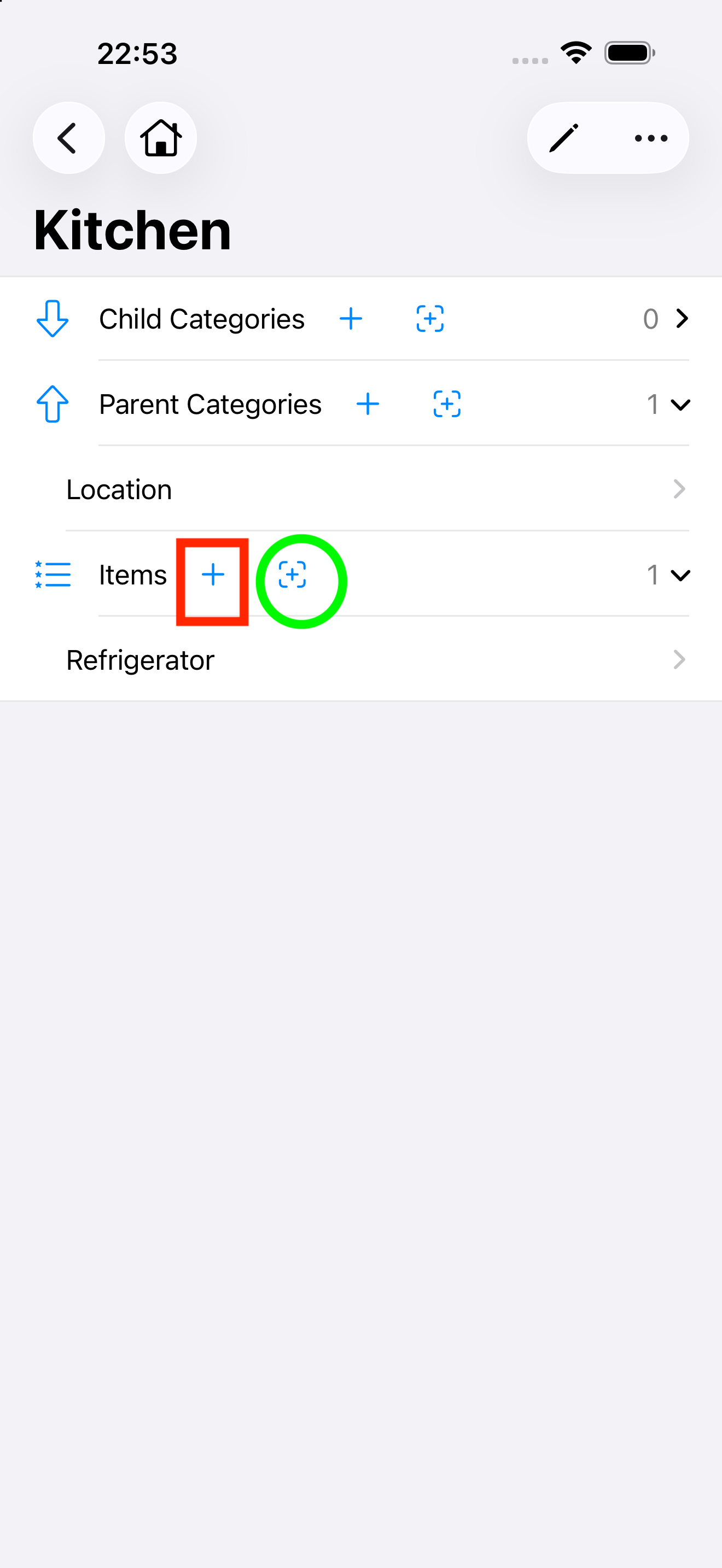
As shown in the figure, use the button inside the red rectangle to create a brand-new item to serve as the item of the current category; use the button inside the green circle to add an existing item to serve as the item of the current category.
Remove and delete items
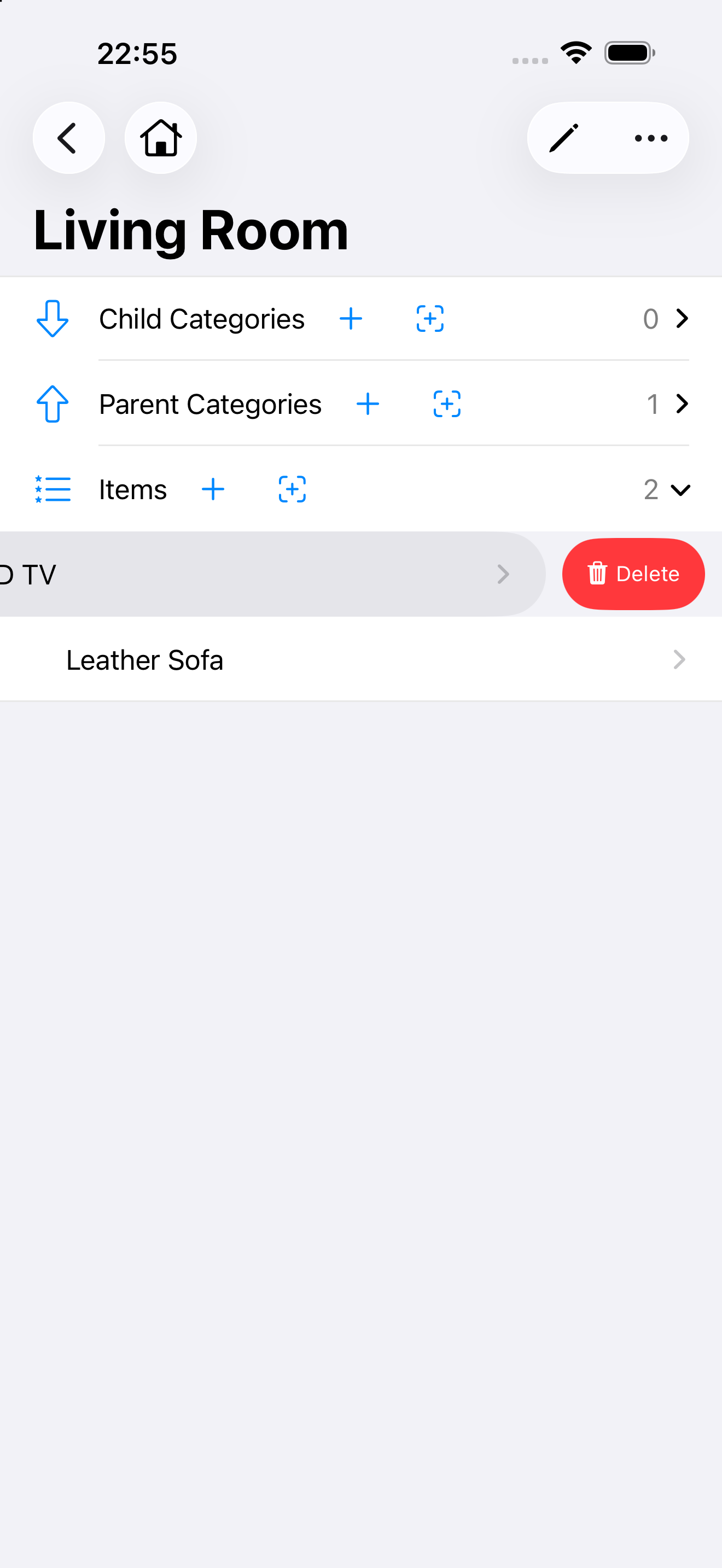
Slide your finger left on a item, which reveals the actions you can do on that account. See the figure below. You can google the swipe gesture if you are not familiar with this operation.
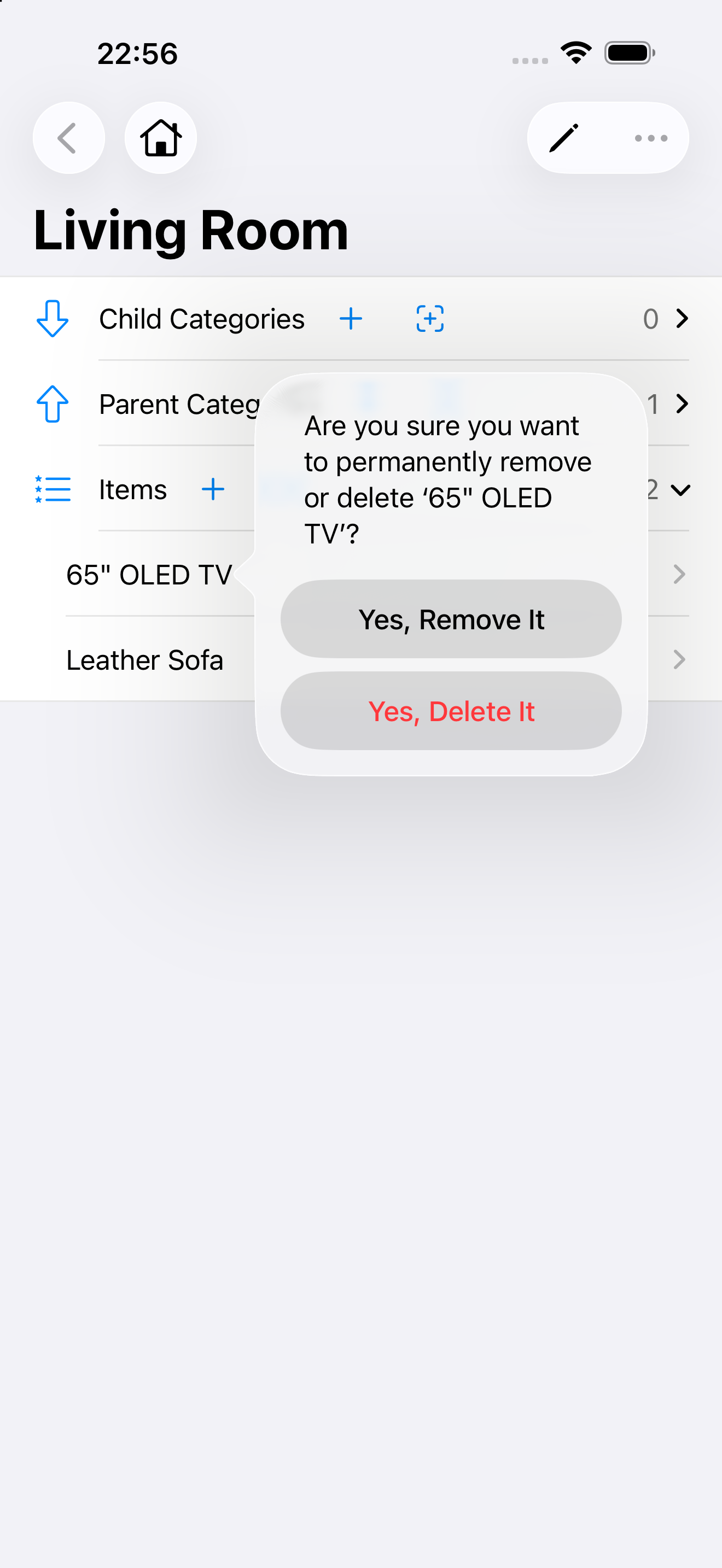
- “Remove” means severing the relationship between the selected item and the current category; it does not actually delete the selected item itself (the item remains in the app).
- “Delete” means removing the selected item entirely; it will no longer exist in the app.